Vault
Introduction
The Vault is the section where credentials for machines and Active Directories connected to Secure Access are managed. You can perform backups, restores, add credentials, and enable/disable automatic password changes.
Within Oplon Secure Access, there are two types of Vaults:
- Host Vault: is the vault that contains the credentials of the machines (servers, workstations, network devices, etc.) connected to Secure Access.
- AD Vault: is the vault that contains the credentials of the Active Directories connected to Secure Access.
Both vaults are managed by the same interface and share the same functionalities.
Password Entry for an OS Login (Host Vault)
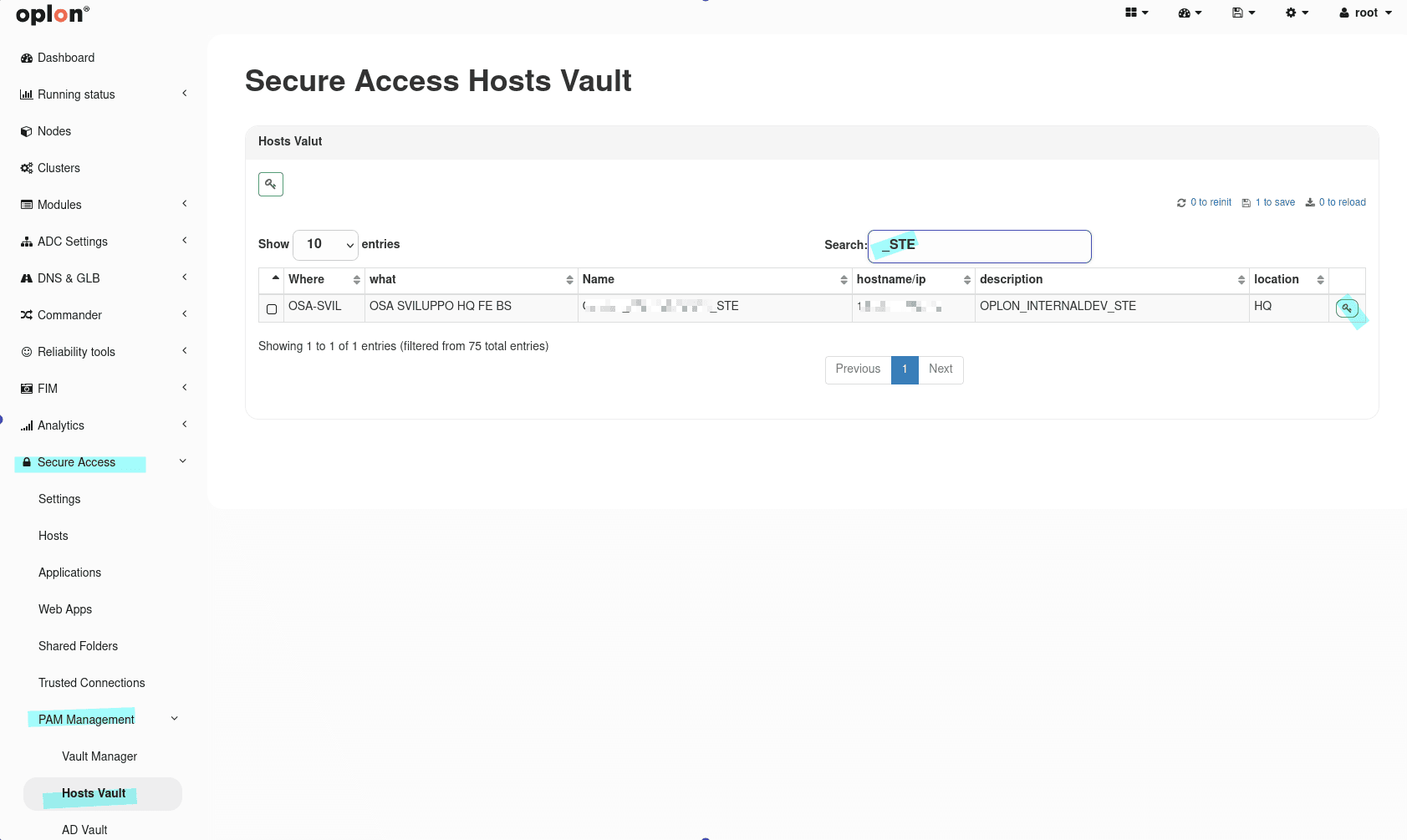
To assign a password to an OS Login (assigned to a User Group) of a Host, you must go to the Host Vault section via the menu: PAM Management > Vault Manager > Host Vault
Search for the corresponding resource from the search bar and click the green key button
to edit the OS Login Names.
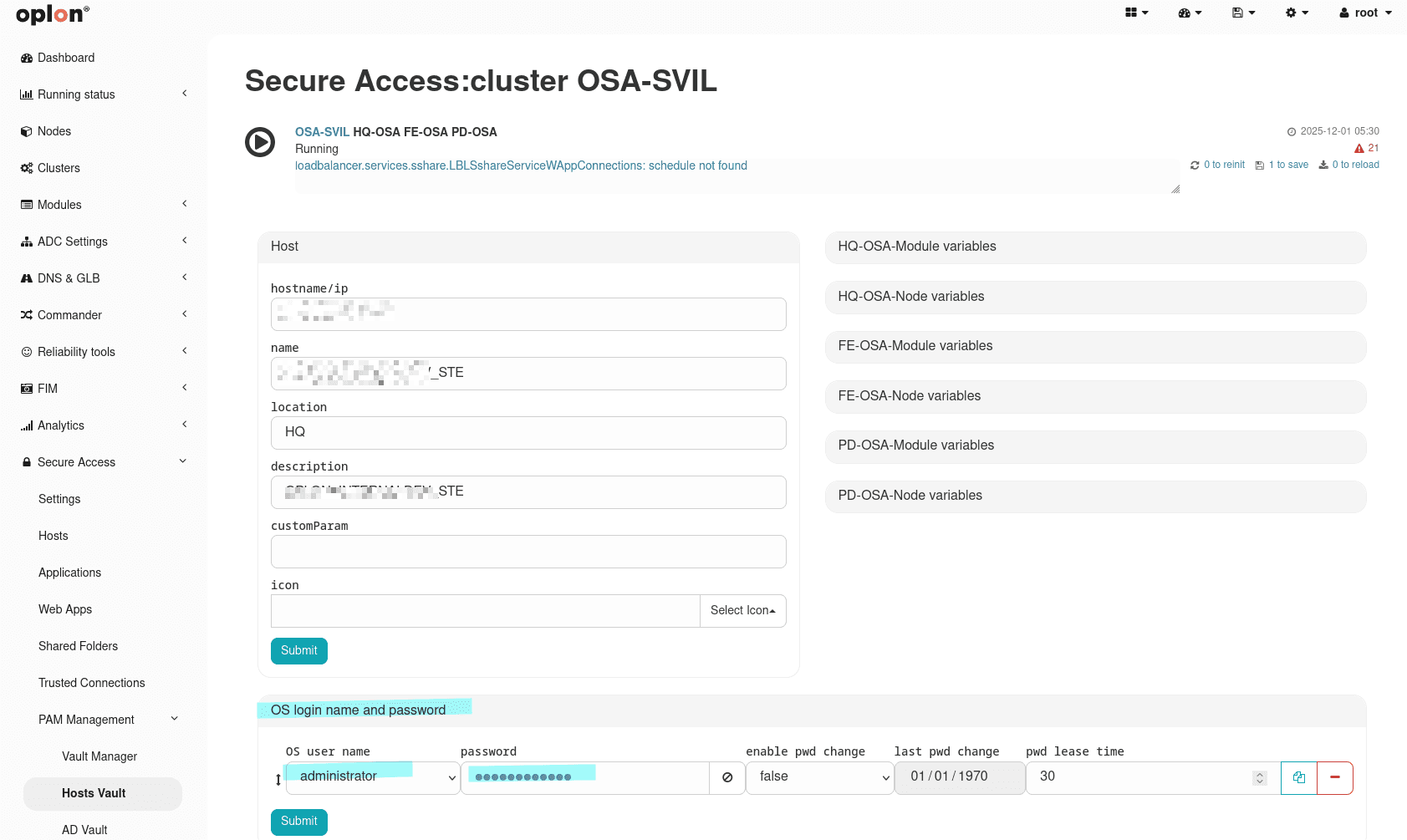
From here, select the users for whom you want to enter passwords from the drop-down menu and enter the
corresponding passwords
Password Entry for an AD Login (AD Vault)
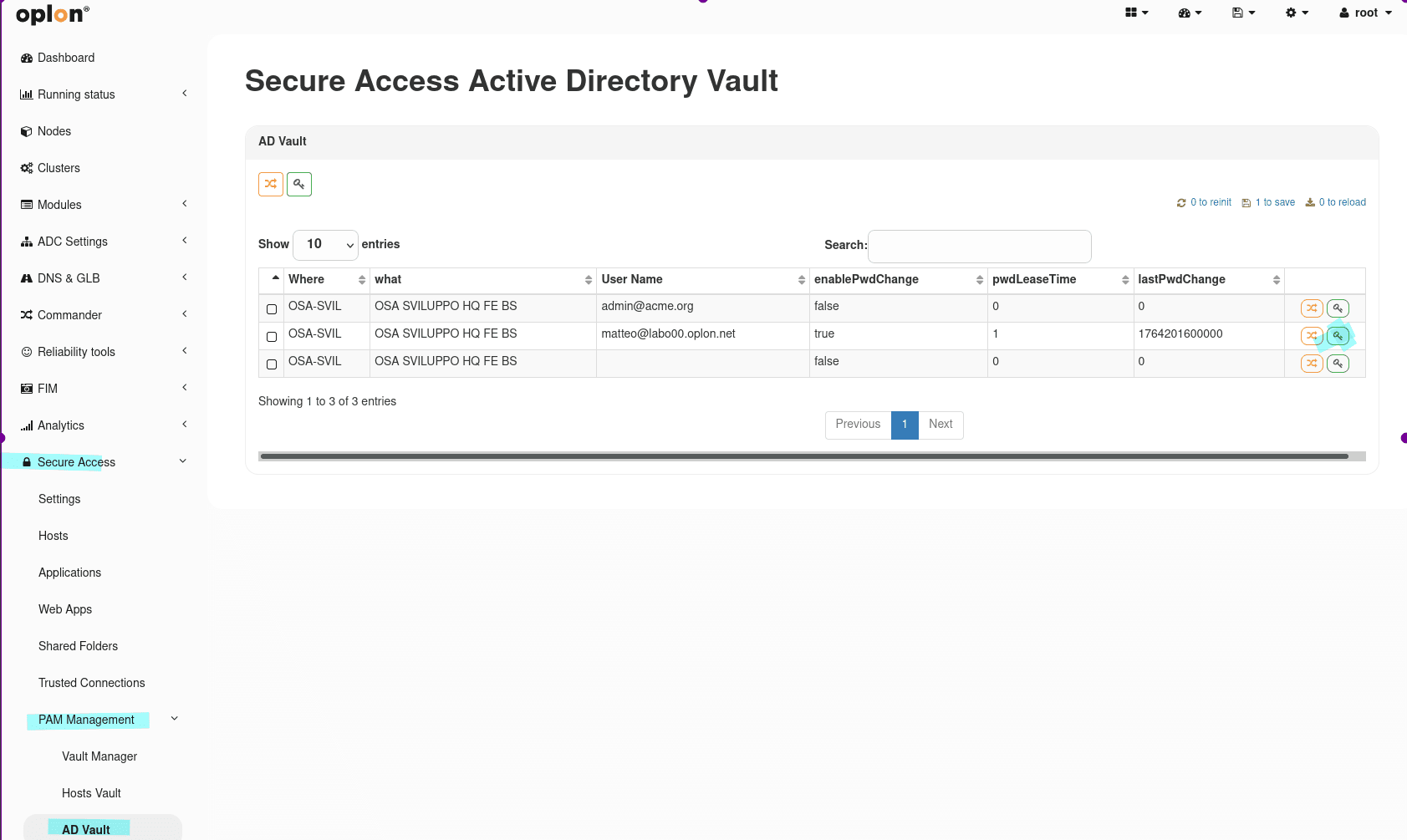
To assign a password to an AD Login (assigned to a User Group) of a Host, you must go to the AD Vault section via the menu: PAM Management > Vault Manager > AD Vault
Search for the corresponding AD username from the search bar and click the green key button
to edit the AD Login Names.
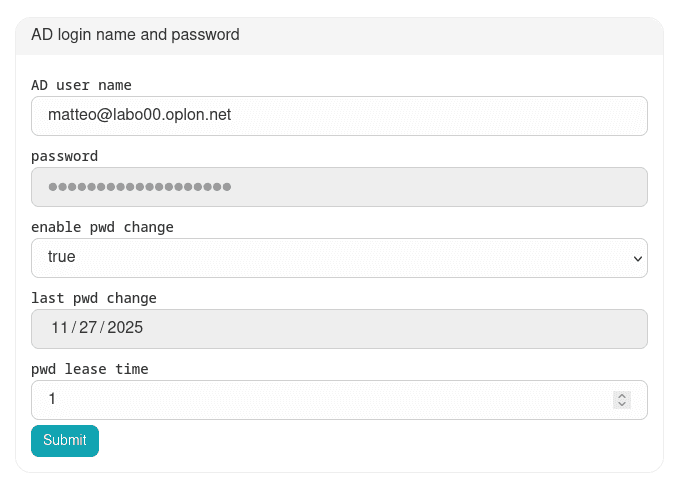
From here it is possible to enter the corresponding password:
Backup & Restore
To access this section go to Secure Access > PAM Management > Vault Manager
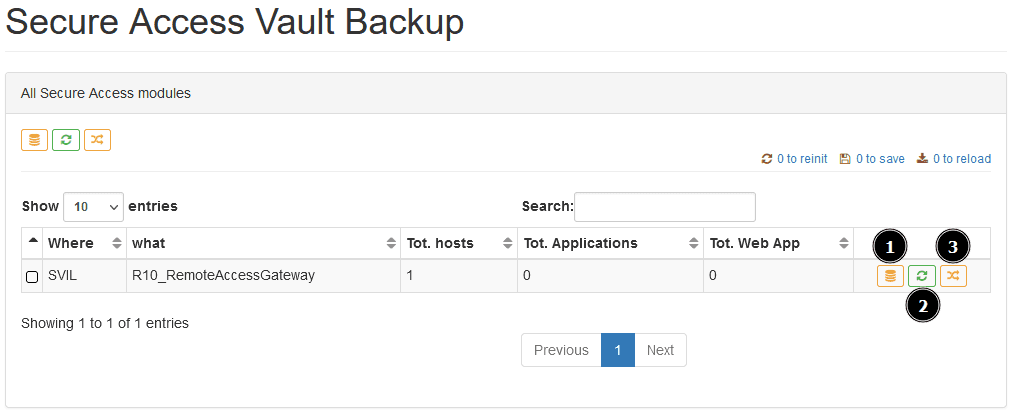
Legend:
- Backup
- Restore
- Password change
Backup
To back up the credentials of all machines in a node, click on the Backup button. A modal will appear asking for the backup name and a password (which will be required to perform the restore).
Restore
To restore a backup, click on the Restore button. A list of all backups performed for each node will be displayed. Choose the backup to restore and click on the Restore button. A modal will appear asking for the password used for that backup, and if correct, that backup will be restored.
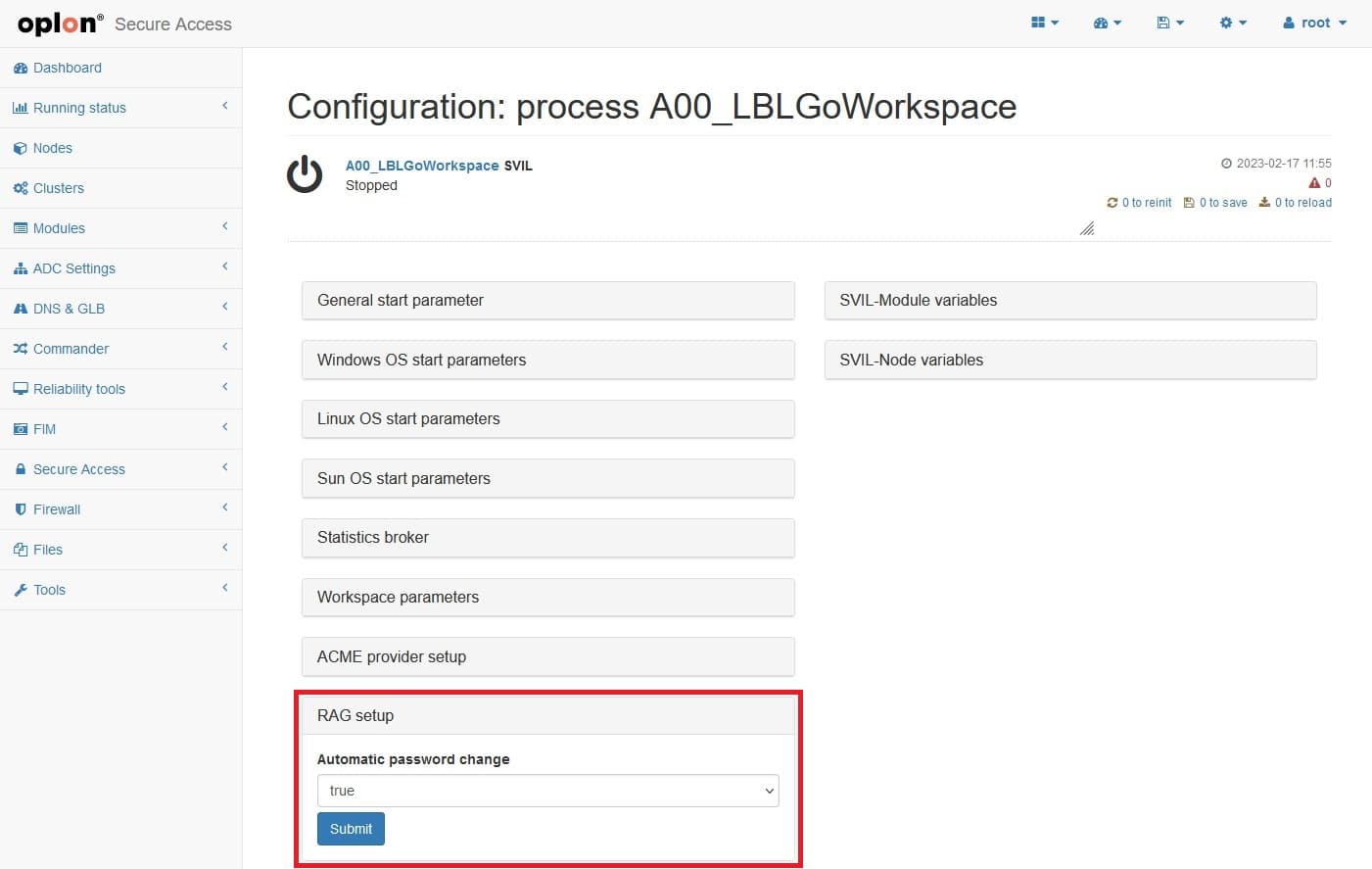
If you are unsure about the restore you are about to perform, perform a preventive backup so as not to lose passwords that (possibly) have been changed since the last backup was performed. To perform a backup or restore, disable scheduled password changes by accessing the Workspace module settings, then in the RAG setup panel and setting Automatic password change to FALSE, otherwise you might find yourself in a situation where, while the backup or restore is being performed, the module is changing passwords on the machines.
Password Change
In Oplon Secure Access, password change management supports both Host Vault and AD Vault, but uses different mechanisms to ensure security and agentless operation.
- Host Vault (Local Users):
Password change for local users occurs via a direct SSH connection to the target host. This approach is agentless (no plugin or agent to install on the remote machine).
Change modes vary based on the operating system:
- Linux: Supports password change for all users (local, admin, and non-admin).
- Windows: Supports password change only for administrative users (local or domain with administrative privileges on the machine).
Best Practice: To best manage resources connected to Secure Access, it is advisable to create credentials for each of them with administrative powers and keep these credentials disconnected from Secure Access automatic password modification, so as to always have an access point and possibly be able to perform maintenance on other accounts.
- AD Vault (Domain Users):
For Active Directory users, password change occurs via direct APIs to the Domain Controller.
- No connection to individual hosts is required.
- Only the connection to the configured AD server is required (see AD configuration guide).
Execution Modes: For both types, password change operations can be performed in two ways:
- On Demand: Immediate manual execution.
- Scheduled: Automatic rotation based on a configurable lease time (e.g., every 30 days).
On-demand (Manual)
-
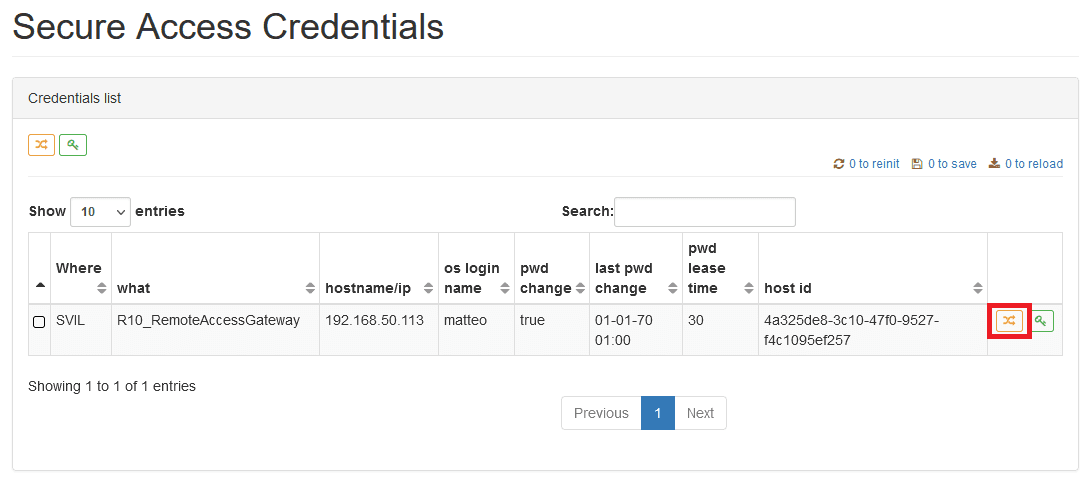
Single machine, single user: access the Secure Access > PAM Management > Credentials section. A list of credentials for each machine will be shown. To perform the password change, simply click on the Change password button.
-
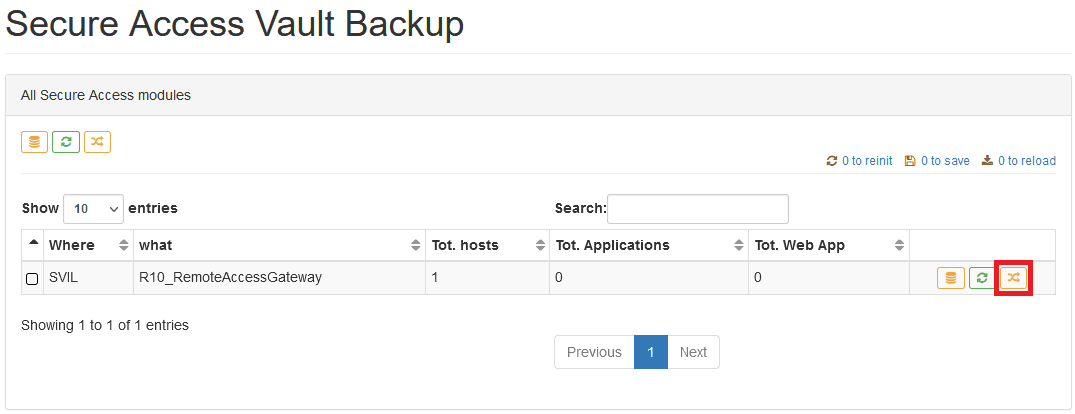
All machines, all users: access the Secure Access > PAM Management > Vault Manager section. To perform the password change, simply click on the Change password button which will execute the automatic password change process for the entire Vault.
Automatic
To change one or more passwords automatically, i.e., leaving the burden of creating and setting the password on the machine and in the Secure Access configuration to the application, there are two ways.
There is the possibility to enable password changes for the entire vault (only for credentials that have enabled automatic password change) every N days.
To enable this feature, access the Workspace module settings and in the RAG setup panel, set Automatic password change to TRUE.
Then for each user of each machine:
- set the Enable pwd change field to TRUE

- configure the interval of days after which to perform the password change, open each credential and set the desired number of days.
